
Apple iOS Setup (Cisco AnyConnect)
Directly download the official client from the China App Store. No foreign Apple ID required.
Setup & Connection Steps
- 1Click the button above to go to the App Store, or search and download 'Cisco Secure Client'.
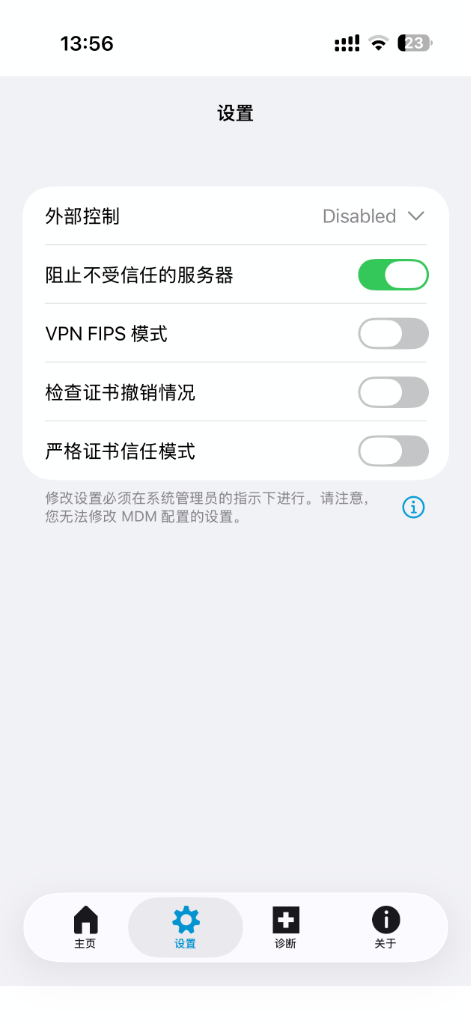
- 2Open the app, go to the 'Settings' (设置) tab, and turn OFF 'Block Untrusted Servers' (阻止不受信任的服务器). This is required to allow our secure self-signed connection.
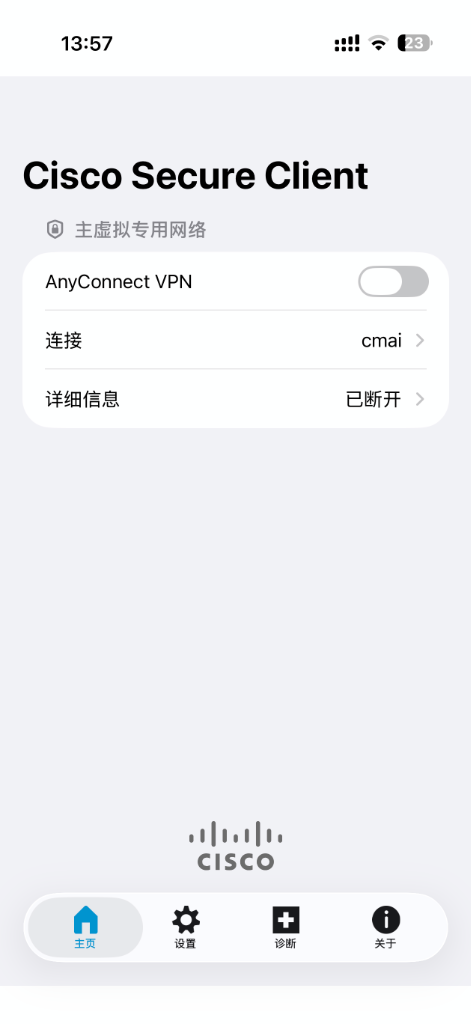
- 3Go to the 'Home' (主页) tab, tap 'Connections' → 'Add VPN Connection'. Set Description to 'CMAI' and Server Address to: 52.220.132.229:4443.
- 4Go back to Home and toggle the 'AnyConnect VPN' switch. Tap 'Continue' on the certificate prompt, then enter the username and password provided by the administrator.
步骤 2:关闭「阻止不受信任的服务器」 / Turn OFF Untrusted Blocker
步骤 4:主页开启连接并输入用户名密码 / Start Connection on Home
Secure VLESS Proxy Setup
Recommended for Windows, Android, and macOS. Resilient to network blocks with premium speed.
To ensure security and enforce device limits, connection keys are issued individually. Please contact the IT administrator or HR to request your personal VLESS connection link.
1. Download Client Software
Download the client directly from our company workspace and install it:
2. Import & Connect
安卓手机极简连接步骤 (Hiddify 推荐)
- 1.复制管理员发给您的 VLESS 链接。
- 2.打开 **Hiddify** 软件,点击屏幕上方的 **「从剪贴板导入」** (或点击右上角「+」选择从剪贴板添加)。
- 3.导入成功后,直接点击屏幕中央硕大的 **圆形按钮**。
- 4.当圆形按钮变为 **绿色** 且显示 **已连接 (Connected)** 时,即代表连接成功!
Windows 电脑连接步骤 / Windows Setup Guide
- 1.复制管理员发给您的 VLESS 链接。
- 2.打开 **v2rayN** 软件,在主界面按 **`Ctrl+V`** 键即可导入。
- 3.在列表中右键点击该节点,选择 **「设为活动服务器」**。
- 4.在桌面右下角系统托盘中,右键点击 v2rayN 蓝/红图标。
- 5.选择 **「系统代理」** → **「自动配置系统代理」** 即可开启代理。
This server is for corporate business use only. Please do not share these credentials publicly.